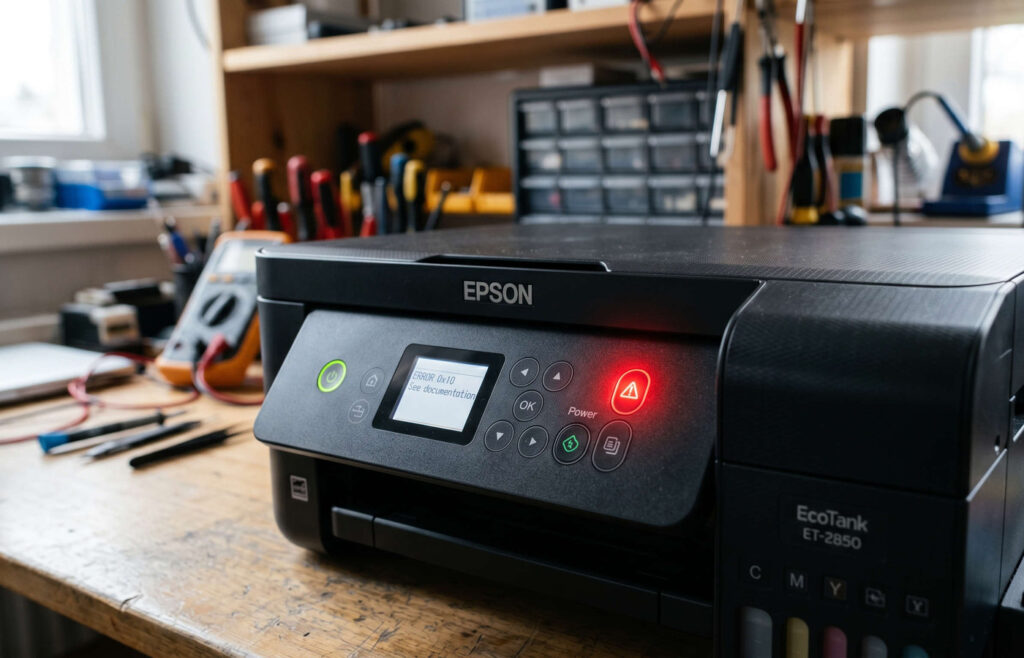
Epson printers may sometimes display a blinking red light, preventing normal printing operations and interrupting regular work. This issue is commonly seen in Epson InkTank and EcoTank printers and may occur due to paper jam problems, waste ink pad warnings, carriage movement issues, hardware faults, or maintenance-related errors.
Understanding the possible causes behind the Epson red light blinking problem can help users perform basic troubleshooting and determine when professional inspection or servicing may be required to restore proper printer functionality and reliable printing performance.
Common Causes of Epson Red Light Blinking Problem
Several factors may trigger a blinking red light error in Epson printers. Some of the most common causes include:
- Paper jam inside the printer
- Waste ink pad reaching its service limit
- Carriage movement obstruction
- Ink system-related issues
- Improper printer initialization
- Hardware or sensor-related faults
- Firmware or internal communication problems
Identifying the exact cause of the issue is important for accurate troubleshooting and restoring proper printer functionality.
Check for Paper Jam Issues
Paper jam problems are one of the most common reasons behind Epson printer red light blinking errors. Users should carefully inspect the following areas for stuck paper or debris:
- Paper input tray
- Rear paper feed area
- Internal paper path
- Roller section
Any jammed paper or debris should be removed carefully to avoid damaging internal printer components and affecting printer functionality.
Restart the Epson Printer
Temporary software or initialization issues may sometimes cause the red light to blink continuously.
Steps to Restart the Printer
- Turn off the Epson printer.
- Disconnect the power cable.
- Wait for approximately 2–3 minutes.
- Reconnect the power cable.
- Turn the printer back on.
Restarting the printer may help reset temporary system errors and restore normal functionality.
Inspect the Ink System and Ink Levels
Low ink levels, air blockage, or improper ink flow may sometimes trigger warning lights in Epson InkTank and EcoTank printers. Users should carefully inspect the following areas:
- Ink tank levels
- Ink tube condition
- Cartridge installation (if applicable)
- Ink leakage or blockage
Proper ink flow is important for stable printer operation, consistent printing performance, and overall print quality.
Check the Waste Ink Pad Warning
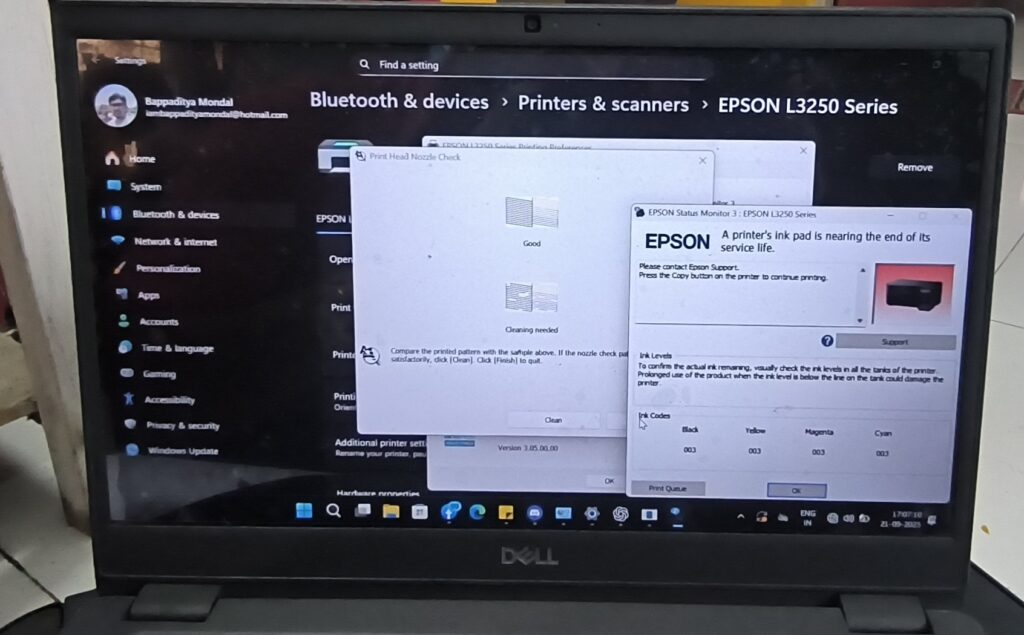
In many Epson printers, a blinking red light may indicate that the waste ink pad has reached its estimated service limit.
Signs of Waste Ink Pad Issues
- Printer stops responding
- Service required message appears
- Red lights blink continuously
- Printing operation stops suddenly
In such cases, professional Epson printer servicing may be required.
Update or Reinstall Epson Printer Drivers
Outdated or corrupted printer drivers may sometimes interfere with printer communication and functionality.
Users Can Try the Following
- Update the Epson printer driver
- Reinstall printer software
- Remove duplicate printer entries
- Restart the computer after installation
Proper driver installation helps maintain stable communication between the printer and connected devices.
When Professional Epson Printer Service May Be Required
Professional inspection may be necessary if the Epson red light blinking issue continues after basic troubleshooting.
Service may help in cases involving:
- Waste ink pad errors
- Sensor-related problems
- Carriage mechanism faults
- Internal hardware damage
- Repeated red light blinking issues
Early diagnosis may help prevent further printer damage and improve long-term printer performance.
Epson Printer Service Support in Kolkata
Epson printer service support in Kolkata is available for handling red light blinking problems, ink system issues, paper jam faults, and hardware-related printer errors in InkTank and EcoTank printers.
Users can discuss printer-related concerns, check service availability, and request on-site inspection based on the printer issue and location.
Frequently Asked Questions
Why is the red light blinking on my Epson printer?
The Epson printer red light may blink due to paper jam issues, waste ink pad warnings, ink system faults, or hardware-related problems.
Can paper jam cause Epson red light blinking?
Yes, paper jam or debris inside the printer may interrupt printer operation and trigger blinking warning lights.
What does the Epson service required message mean?
This message may indicate that the waste ink pad has reached its estimated limit or that the printer requires servicing.
Should I continue using the printer when the red light is blinking?
Continuous use without proper inspection may increase the risk of internal printer damage. Basic troubleshooting should be performed first.
Conclusion
Epson printer red light blinking problems may occur due to paper jam issues, waste ink pad warnings, ink system faults, or hardware-related errors. Basic troubleshooting methods such as checking paper paths, restarting the printer, inspecting the ink system, and updating drivers may help resolve the issue in many cases.
If the problem continues after troubleshooting, professional Epson printer service may be required to identify the exact cause and restore reliable and consistent printer performance. Early inspection may also help prevent further printer damage and improve long-term printer functionality.