Epson printers may occasionally stop printing black ink even when the ink tank appears full. This issue is common in InkTank and EcoTank printers and may occur due to printhead blockage, incorrect settings, air blockage in the ink system, or software-related problems.
If not resolved properly, black ink printing issues can affect document quality, interrupt regular work, and reduce overall printing performance. Understanding the possible causes and following the correct troubleshooting process can help restore proper printer functionality.
Common Reasons Why Epson Printer Is Not Printing Black Ink
There are several reasons why an Epson printer may stop printing black ink properly. Some of the most common causes include:
- Low or empty black ink tank or cartridge
- Clogged printhead nozzles
- Incorrect print quality settings
- Air trapped inside the ink supply system
- Driver or software-related problems
- Infrequent printer usage causing ink blockage
- Internal hardware faults
Identifying the exact cause of the issue is important for accurate troubleshooting and long-term printing performance.
Check the Black Ink Level
The first step is to verify whether the black ink level is sufficient. Low ink levels may result in faded prints, incomplete text, or complete absence of black output.
Users can check ink levels through the Epson printer software installed on the computer or directly from the printer display panel, depending on the printer model.
If the black ink level is low, refill the ink tank or replace the cartridge as required.
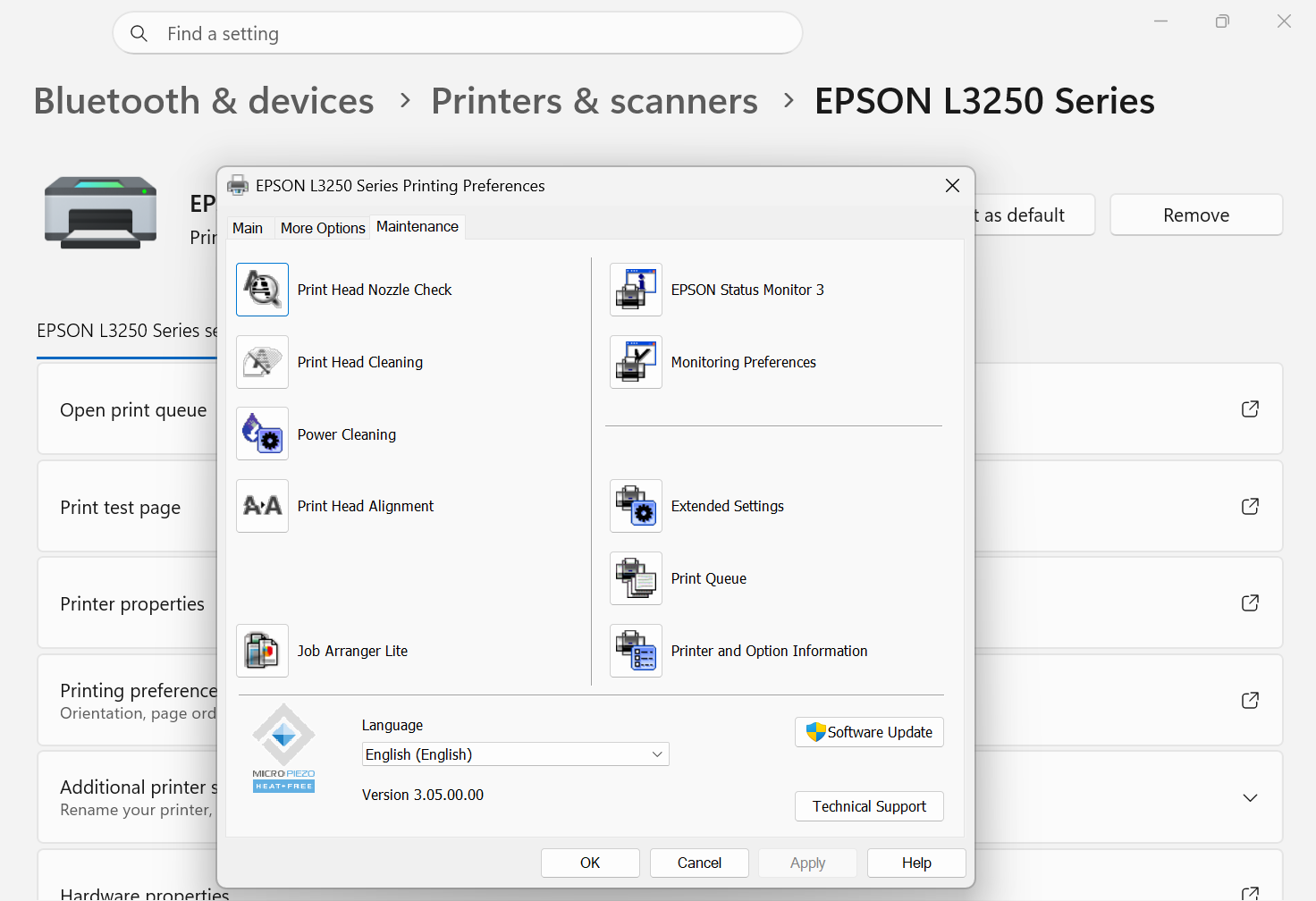
Perform a Nozzle Check
Epson printers include a built-in nozzle check feature that helps identify printhead blockage issues.
Steps to Perform a Nozzle Check
- Open the Epson printer utility software.
- Navigate to the Maintenance section.
- Select “Nozzle Check.”
- Print the test pattern.
- Inspect the printed output carefully.
If gaps or missing lines appear in the printed pattern, the printhead may be clogged and require cleaning.
Run Printhead Cleaning
If the nozzle check pattern is incomplete, running the printhead cleaning function may help restore proper ink flow.
Steps for Printhead Cleaning
- Open the Epson printer utility.
- Go to the Maintenance section.
- Select “Head Cleaning.”
- Start the cleaning process.
- Wait for the cleaning cycle to complete.
- Perform another nozzle check.
Multiple cleaning cycles may sometimes be required if the blockage is severe. However, excessive cleaning should be avoided because it consumes ink.
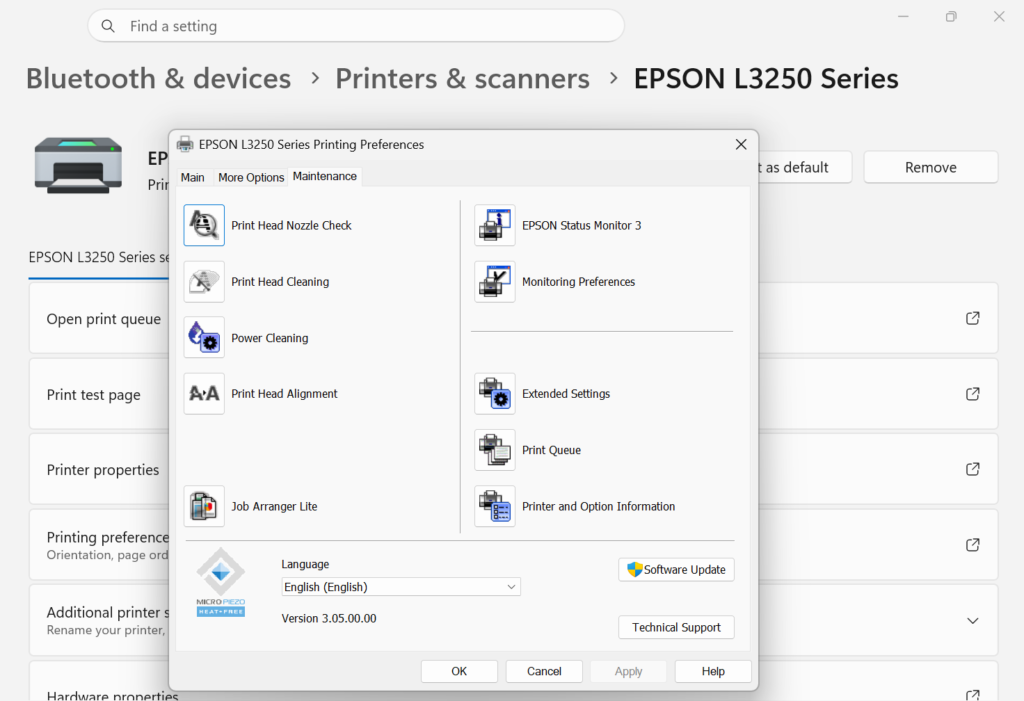
If the nozzle check pattern is incomplete, running the printhead cleaning function may help restore proper ink flow.
Verify Print Settings
Incorrect print settings may also prevent black ink from printing properly.
Users should check:
- Paper type settings
- Grayscale or color printing options
- Draft mode settings
- Print quality selection
Selecting the correct print settings based on the document type may help improve overall print quality and ink output.
Restart the Printer and Computer
Temporary software or communication issues may sometimes affect printer performance.
Restarting both the printer and computer may help refresh the connection and resolve minor software conflicts.
Update or Reinstall Printer Drivers
Outdated or corrupted printer drivers may interfere with printer functionality and communication.
Users can:
- Update the existing Epson printer driver
- Reinstall the driver if necessary
- Remove duplicate printer entries from the system
Proper driver installation helps maintain stable communication between the printer and connected devices.
For official driver support and software updates, users can visit the Epson support website.
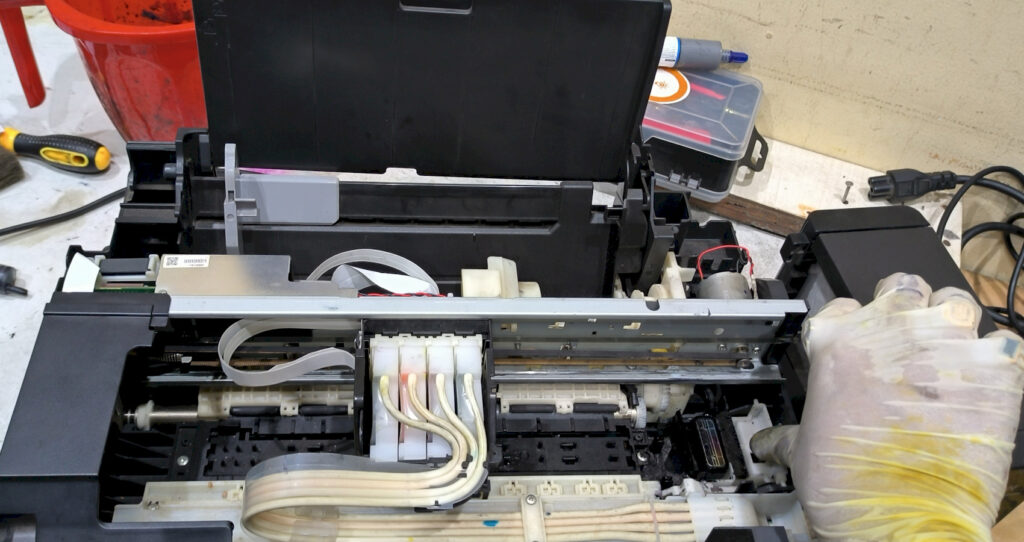
Check for Air Blockage in the Ink System
In Epson InkTank and EcoTank printers, air bubbles inside the ink supply system may interrupt black ink flow and affect printing performance.
If air blockage is suspected, professional inspection and servicing may be required to restore proper ink circulation.
When Professional Epson Printer Service May Be Required
If the printer still does not print black ink after basic troubleshooting, professional inspection may be necessary.
Professional Epson printer service may help in cases involving:
- Severe printhead blockage
- Ink system faults
- Damaged internal components
- Motherboard or sensor-related issues
- Repeated print quality problems
Early inspection may help prevent further damage and improve long-term printer performance.
Epson Printer Service Support in Kolkata
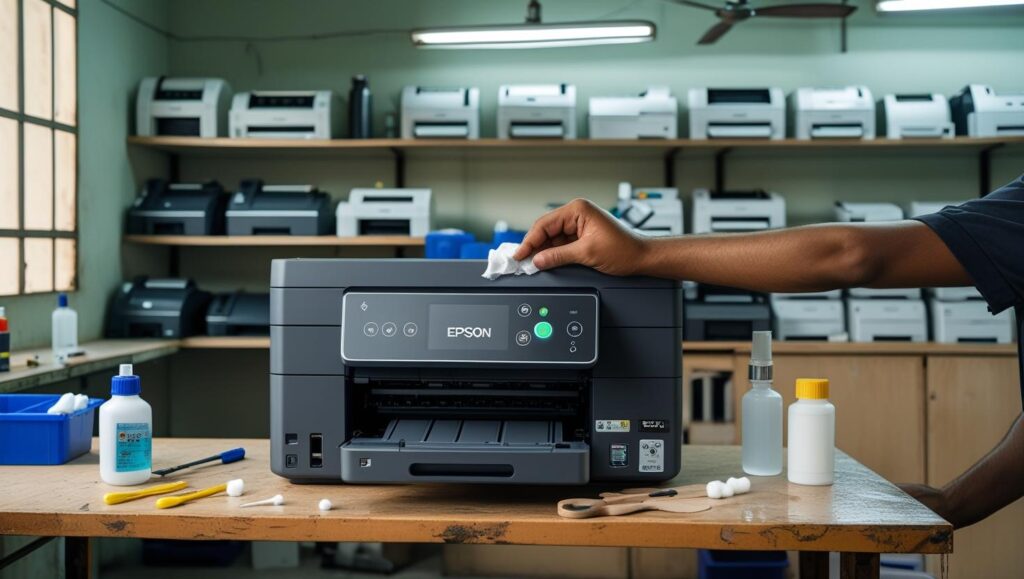
Epson printer service support in Kolkata is available for handling print quality issues, ink system problems, and hardware-related faults in InkTank and EcoTank printers.
Users can contact to discuss printer-related concerns, check service availability, and request on-site inspection based on the issue and location.
Need professional Epson printer repair support in Kolkata? Users can visit the Epson Printer Service page to check service availability and request on-site support.
Frequently Asked Questions
Why is my Epson printer not printing black ink?
An Epson printer may stop printing black ink due to clogged printheads, low ink levels, software issues, incorrect print settings, or air blockage in the ink system.
Can clogged printheads affect black ink printing?
Yes, clogged printheads are one of the most common reasons behind black ink printing issues in Epson printers.
How do I clean the Epson printhead?
Users can run the built-in Head Cleaning function available in the Epson printer maintenance settings.
When should I seek professional Epson printer service?
Professional inspection may be required if the issue continues after nozzle checks, printhead cleaning, and basic troubleshooting.
Conclusion
Epson printers may stop printing black ink due to several software, ink system, or hardware-related issues. Basic troubleshooting methods such as nozzle checks, printhead cleaning, driver updates, and proper print settings may help restore printing functionality in many cases.
If the issue continues after troubleshooting, professional Epson printer service may be required to identify the exact fault and restore reliable and consistent printing performance. Early inspection may also help prevent further damage and improve long-term printer functionality.
